A visual website builder is great for creating a design, but what happens when you want to manage the content somewhere else? You might want a dedicated CMS for your articles, while keeping control over the layout inside your site builder.
That is exactly what we can do with Sitereal and EmDash. Connect the two, choose the content you want to use, and reference that content dynamically in your design. You can build the layout manually or use an AI agent such as Codex to handle that part for you.
The nice thing is that this does not have to be an all-or-nothing alternative to WordPress. Sitereal can also pull in WordPress content, alongside its own CMS collections and other external data sources. You have quite a bit of flexibility.
What You'll Learn
- Connect EmDash to Sitereal and select the CMS collections your website needs.
- Use dynamic fields to display CMS titles, featured images, and associated content.
- Ask a connected Codex agent to create a section using real CMS data.
- Combine external CMS content with Sitereal’s native collections in the same project.
Table of Contents
- The Starting Point: A Website That Needs a Blog
- 1. Connect Sitereal to EmDash
- 2. Choose Which CMS Collections to Use
- 3. Explore the Source Settings and Dynamic Fields
- 4. Use Codex to Create a Dynamic Posts Section
- 5. Publish a New EmDash Post and Test the Result
- Combine External Content With Sitereal’s Own CMS
The Starting Point: A Website That Needs a Blog
For this example, I have a garden and landscaping website already created in Sitereal using AI. It has the main design, imagery, sections, and animation effects in place. What it needs now is a blog section with articles about looking after your garden.
Sitereal lets you create CMS collections directly inside the platform, but I want to manage these articles in a separate, visual CMS. EmDash handles the content, and Sitereal handles how that content appears on the website.
There are three parts to the workflow:
- Connect an existing EmDash site to Sitereal.
- Choose the collections and dynamic fields the website needs.
- Create a section that displays those posts, then publish a new article to test the connection.
I used an existing EmDash installation running version 1.1 for this example. The key actions here are creating posts, adding images, and publishing content, rather than exploring version-specific features.
1. Connect Sitereal to EmDash
Open the content or CMS area in Sitereal and find the options for adding a data source. The CMS connections shown include EmDash and WordPress. There are also options for REST APIs, RSS or Atom feeds, and other sources, which we will come back to shortly.
Choose EmDash, then enter the address of your EmDash website.
- Enter your EmDash site URL in the connection settings.
- Select Connect. If you have previously connected and disconnected the site, the button may say Connect again.
- Follow the redirect to your EmDash website.
- Review the requested permissions and select Authorize if you are happy to grant them.
- Return to Sitereal and check the connected source.
Pay attention to the permissions screen. In my example, the connection requested full admin access. That is a broad level of access, so review it rather than simply clicking through. The authorization screen also displays a device code associated with that connection attempt.
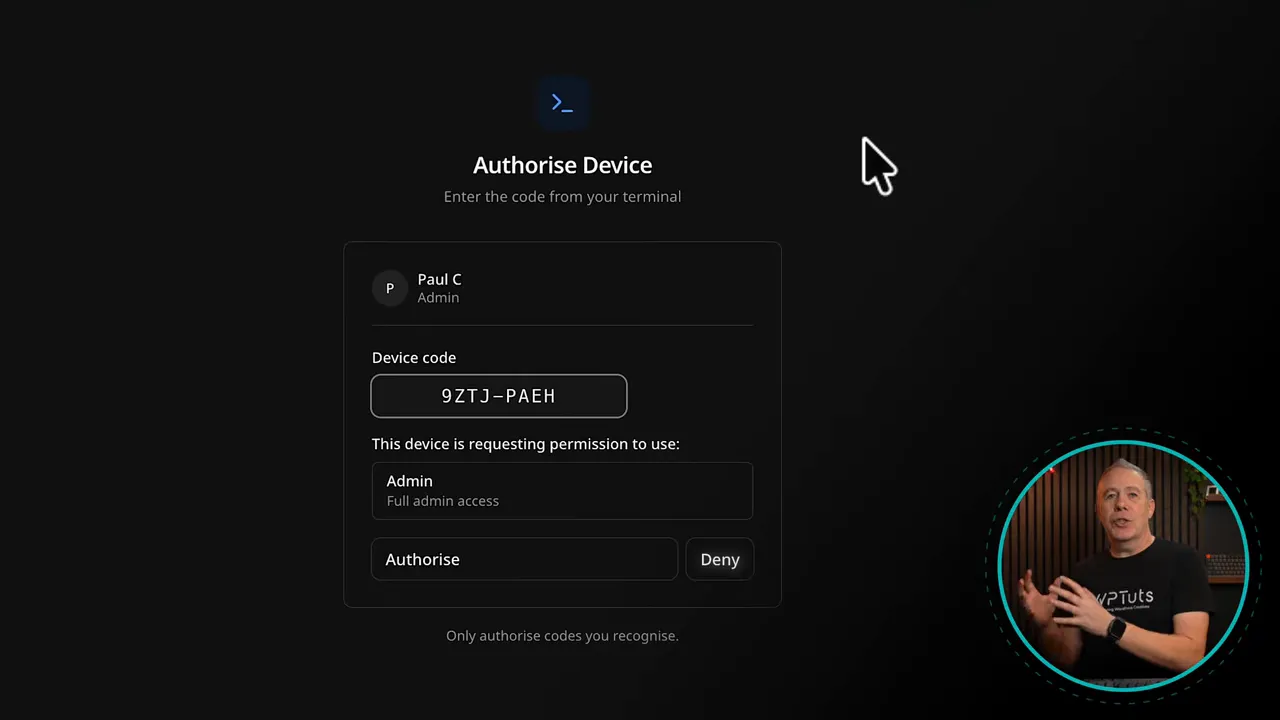
Once authorized, the EmDash connection appears under Sources in Sitereal. Open its posts source and you should see the articles pulled in from the CMS. In this case, there are two existing posts ready to use.
A Note About the Companion Plugin Link
One small snag is worth mentioning. When I tested this, the EmDash connection settings included a companion plugin option with a Get the plugin link. Each time I tried it, the link opened a 404 page.
I could not tell whether the plugin was still coming, the destination had moved, or the link was simply incorrect. The CMS connection demonstrated here worked despite that broken link. The link may have been updated since, but do not confuse that particular issue with the connection itself failing.
2. Choose Which CMS Collections to Use
Connecting a CMS does not mean you have to bring every type of content into your project.
In the EmDash connection settings, posts are already selected. You can also enable pages, and custom post types created in EmDash can be connected here as well.
- Posts: Use these for the garden articles in this example.
- Pages: Enable these if you want EmDash pages available as a source in Sitereal.
- Custom post types: Connect other content types you have created in EmDash.
I briefly enabled pages, then removed that collection from the Sitereal setup because this particular section only needs posts. That keeps the example focused: one external CMS, one posts collection, and two articles to begin with.
3. Explore the Source Settings and Dynamic Fields
Now we have the content connected, the next question is how to use it in a design.
Open the EmDash posts source, then select its little cog icon. This opens the associated source settings, including the collection configuration, a data preview, and the fields available to your layout.
Collection Settings
The source settings give you control over several things:
- Name: Rename the source to something useful for your project, such as EmDash CMS.
- Entries to fetch: Control the entries being retrieved.
- File name: Set the file name used by the source.
- Extra parameters: Supply options for things such as sorting and filtering.
For this example, there is no need to get too technical. I leave the fetching and parameter settings as they are.
Categories and Tags
Under Terms, you can enable categories and tags. If you organize content in EmDash using those terms, enabling them makes that associated information available in Sitereal too.
This will feel familiar if you have organized posts in WordPress. You are bringing across not just the article itself, but also the information used to group and describe it.
Preview the Data Before Building
The preview shows the current entries and their data. With two posts connected, I can inspect both records and scroll across to see additional values.
Below that is the list of available fields, including the title and featured-image information. Sitereal exposes dynamic references that you can use when creating your design.
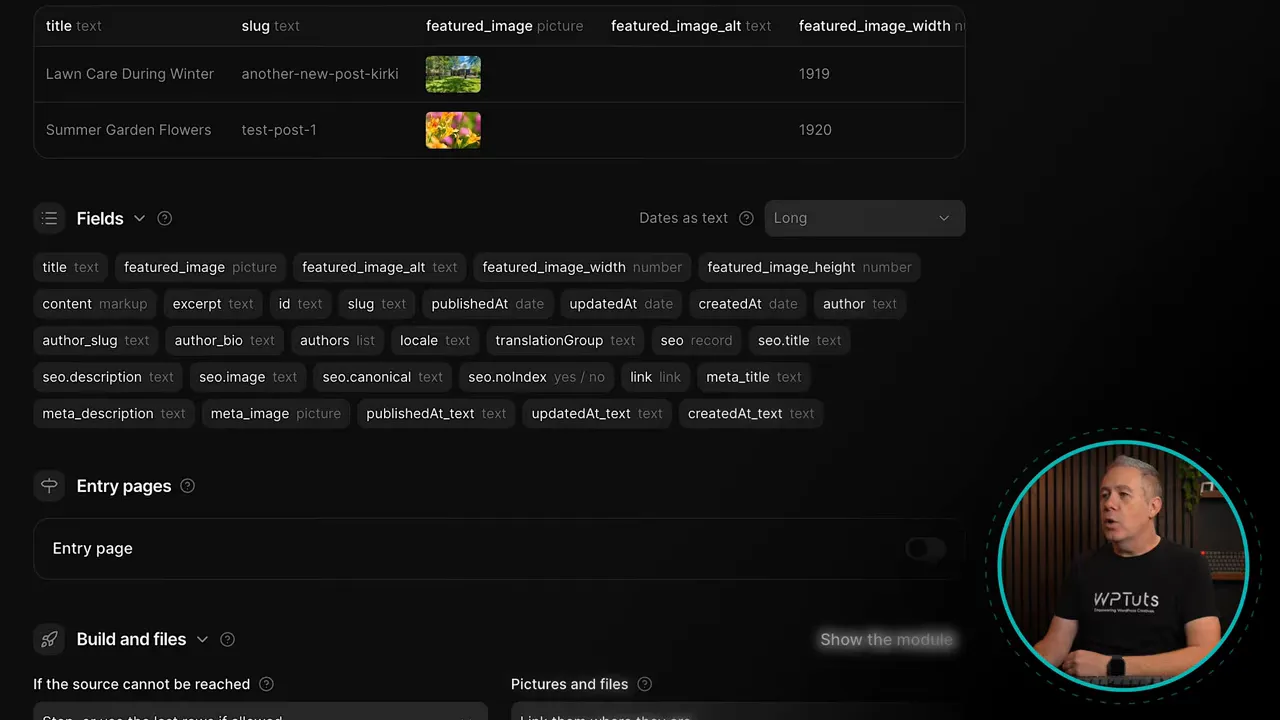
If you have used dynamic data in a tool such as Bricks Builder with WordPress, the principle is much the same. Instead of entering a fixed title or manually choosing an image for each card, you reference the appropriate field from the connected source.
For example, a featured-image reference outputs the featured image belonging to that entry. A title reference outputs that entry’s title. The layout defines the presentation; the CMS supplies the content. Simple as that.
There are also sections for entry pages and build and file settings. Those provide further controls, but we do not need to explore them in depth to get this basic connection working.
Save the source settings, then use the test option to check that everything is working before moving on to the design. The Sitereal documentation is a useful reference when you want to go further with source configuration.
4. Use Codex to Create a Dynamic Posts Section
At this point, the EmDash content is available inside Sitereal. We could manually create a new section and connect its elements to the relevant fields, or we could use AI to do that work.
I already have Codex connected to my Sitereal account and this particular project. That connection is a prerequisite for this part of the workflow, rather than something being set up here. Sitereal provides information about its supported connections on the AI agents and MCP page.
With the correct project open in Codex, I ask it to create a section using the connected EmDash posts. The request identifies the data source, asks for the two latest published posts, and places the section below the existing garden-work section.
The important part is to make it clear that you want the connected CMS data, not a set of static example cards. The requested design uses the post imagery and excerpts, with buttons linking to the posts.
Submit the request, let Codex carry out the work, and answer any follow-up questions it raises.
How Sitereal Shows That an Agent Is Working
While an agent such as Codex or Claude is working through its Model Context Protocol connection, Sitereal displays a checkered outline around the affected page or section.
That is a useful little detail. It gives you a visual indication that the connected client is carrying out an action, rather than leaving you wondering whether anything is happening.
After the work completes, the website has a Latest Garden Notes section displaying the two existing EmDash articles: Lawn Care During Winter and Summer Garden Flowers.
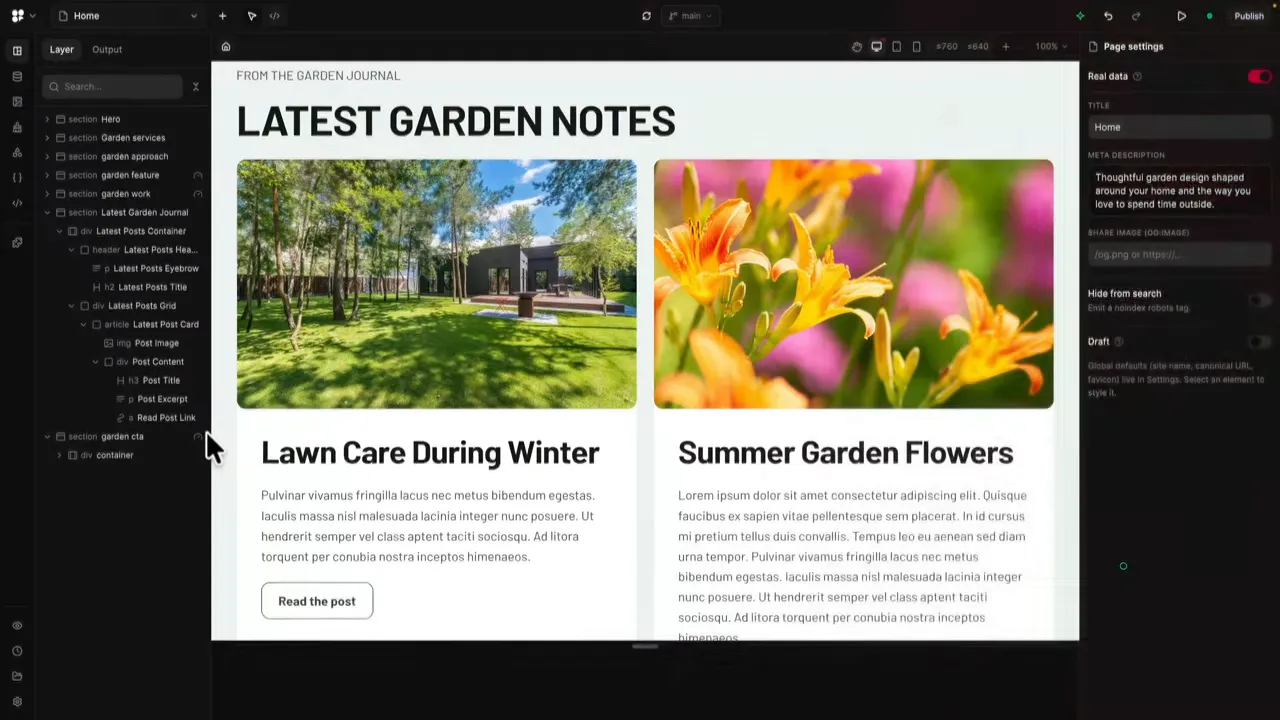
The section now has a design, but its content comes from the external CMS. The next step is to check that it really responds to newly published content.
5. Publish a New EmDash Post and Test the Result
A connection is much more useful when you know that new content comes through correctly. To test it, I create another article in EmDash called Tree Care.
- Open the posts area in EmDash and add a new item.
- Enter the article title.
- Upload and select a featured image.
- Add the main article content.
- Enter a short excerpt and save.
- Add any relevant categories, tags, or SEO information.
- Select Publish now and confirm publication.
For this article, I add a relevant tips-and-guides category. You can fill out the other available information to suit your content workflow.
When I return to Sitereal, the Tree Care article is already present in the connected source. Opening the website’s front end shows it in the garden-notes section too, complete with its image and text.
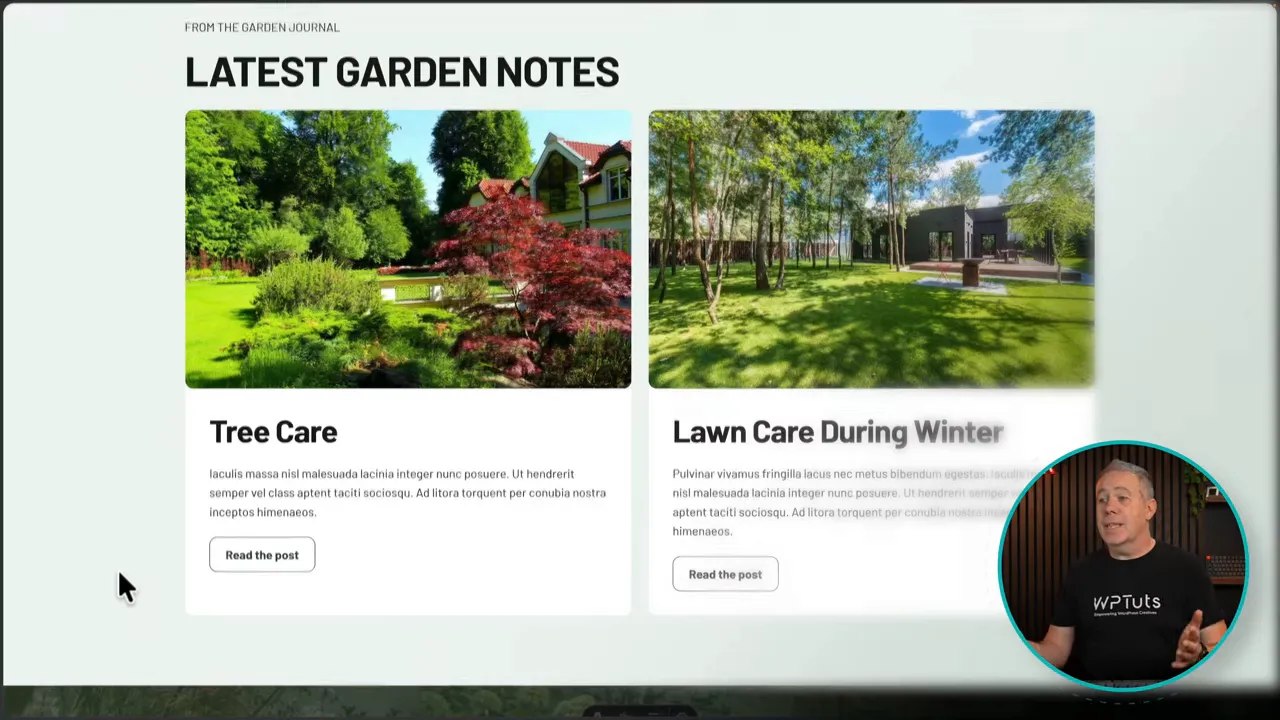
There is no need to manually create another card for this article. In this test, the connected data updates and the section displays the new post using the layout that is already in place.
That is the practical benefit of the setup: write and publish in EmDash, then let the connected design use that content.
Combine External Content With Sitereal’s Own CMS
One of my favourite parts of this workflow is that you are not limited to a single CMS source.
The same Sitereal project can use its own collections alongside content from EmDash, WordPress, and other connected sources. The available source options also include:
- REST APIs
- RSS and Atom feeds
- Google Sheets
- CSV files
- Custom code
You can keep adding sources, including multiple CMS websites, depending on where your content lives.
The garden website is a good example of that mixed approach. Its blog content comes from EmDash, but the team page uses a Team collection created directly inside Sitereal. Opening that collection shows the team-member records, and the website displays those same people in its team layout.
So this is not simply a case of replacing one CMS with another. It is about choosing where each type of content is best managed, then bringing it together in a single website.
For me, that combination is what makes Sitereal an interesting WordPress alternative: visual design, external CMS connections, native collections, and the option to use AI to help build the layouts. The connection itself is quick to establish, and the publishing test makes the value clear. Manage the content where you want it, and use Sitereal to put it to work.


