Moving an Elementor site over to Bricks usually brings up one fairly obvious question: how much of it will I have to rebuild?
Bricks Migration Engine promises to take a good chunk of that work off your hands by converting Elementor pages and templates into Bricks. I put it through a practical test on an existing landing page, then checked what worked, what needed fixing, and whether the result was actually useful.
The short answer is that it did a pretty good job. It wasn't a perfect one-to-one conversion, but the issues I encountered were mostly straightforward to put right. And that is the important distinction: a migration tool doesn't have to finish every last detail to save you a considerable amount of time.
For clarity, I have no sponsorship, affiliate relationship, or financial connection with this plugin or its developer. It appeared in the WPTuts community, caught my interest, and I wanted to see how it performed.
Key Takeaways
- Bricks Migration Engine converted the core landing page layout, carousel, colors, and template conditions successfully.
- The test still required fixes to the video embed, icon styling, and some mobile text sizing.
- Older Elementor layouts can carry unnecessary container nesting into the converted Bricks structure.
- Use the free three-page allowance on staging to evaluate your more complex layouts before purchasing.
Table of Contents
- The Test Site and Migration Workflow
- 1. Set Up on Staging and Scan the Site
- 2. Convert the Selected Content
- 3. Review the Converted Page in Bricks
- Check Tablet and Mobile Breakpoints
- Headers, Footers, and Display Conditions
- 4. Finish the Transition Away from Elementor
- Free Version, Pricing, and Lifetime Offer
- My Verdict: A Useful Head Start, Not a Perfect Replica
- Sponsor: WP2FA for WordPress Login Security
The Test Site and Migration Workflow
I used a relatively simple landing page rather than a complicated website. It included enough different elements to make the test useful:
- Buttons and hover effects.
- Overlay effects and several different content layouts.
- An embedded Wistia video.
- A testimonial carousel.
- Icon boxes.
- Header and footer templates with display conditions.
This was also an older Elementor design, built before its newer Flexbox layout approach. That matters because the converter has to work with the structure it receives, including any legacy nesting.
The migration follows four stages:
- Scan and preview: identify the content and assess its conversion prospects.
- Convert: migrate the selected pages and templates.
- Review and fix: inspect the results and make any necessary adjustments.
- Go live: finish the transition once you're happy with the Bricks version.
It's a sensible process, particularly the review stage. Automated conversion is a starting point, not a reason to skip checking the finished site.
1. Set Up on Staging and Scan the Site
I had Elementor, Elementor Pro, Bricks, and Bricks Migration Engine installed. The other plugins from the original site were still present, too.
All of this testing took place on a staging copy. That let me work with the real site's content without risking the live version. The migration plugin described the installation as a live site, but in this case it was already safely separated from production.
After activation, the plugin detected the installed Bricks version and displayed a compatibility warning. At the time of testing, its notice said it had been tested up to version 2.3.9. I also tried it with the Bricks 2.4 beta and it worked in that test, although that shouldn't be taken as a blanket guarantee for every version or site.
From the opening screen, select Scan this site. The plugin checks pages, templates, and other relevant content, then presents its findings.
Understanding the Conversion Confidence Score
The scan returned a 99% conversion confidence score almost immediately. For this fairly straightforward design, the plugin was confident it could handle most of the content.
It also flagged an item for review and showed where the relevant content lived. The dashboard lets you inspect the available pages, posts, and templates, distinguish content needing attention, and choose what to convert.
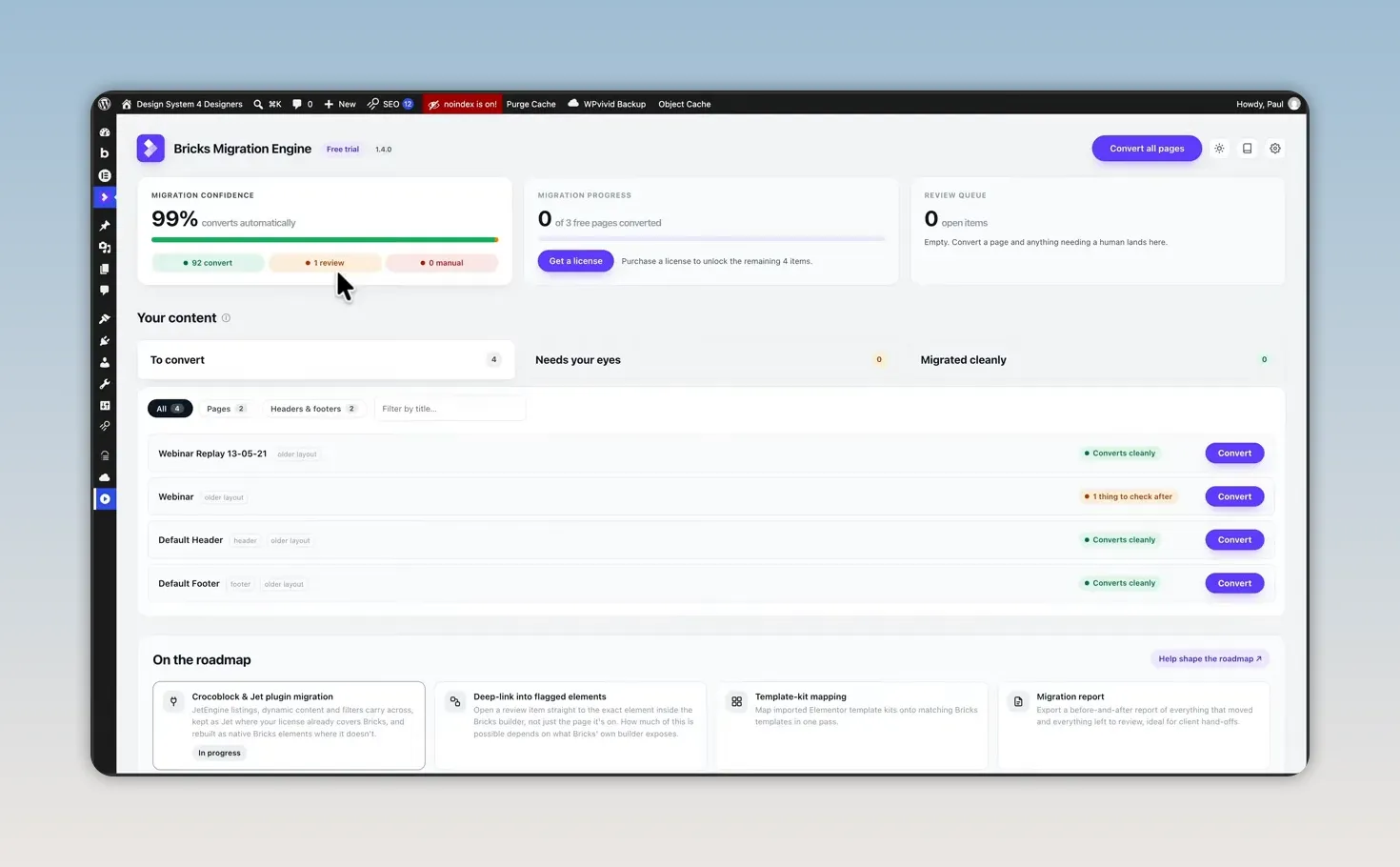
That confidence figure is useful guidance, but it isn't the same as saying the finished page will be visually perfect. As the subsequent checks showed, small styling issues can still need attention.
What the Free Version Lets You Test
The free version available during my test allowed conversion of three pages. Header and footer templates did not count toward that page allowance, and those templates could be converted as well.
That's enough to get a meaningful feel for the tool before buying a license. Rather than choosing only your easiest pages, I'd use that allowance to test some of the more demanding layouts on the site you actually want to migrate.
2. Convert the Selected Content
You can choose individual items or use the bulk conversion option. I selected Convert all pages for this test, and the process completed very quickly on this small site.
The completed run produced a review queue with eight items. From the content list, the available actions included opening the converted page on the front end, editing it in Bricks, marking it as checked, and reconverting it if necessary.
That gives you a practical working loop: open an item, inspect it, make your changes, and mark it checked once you're satisfied. The conversion itself is quick; the more important work is deciding whether the result is ready.
3. Review the Converted Page in Bricks
I opened the main landing page using Edit with Bricks. The overall design was there, and it was editable inside Bricks rather than something I had to recreate from scratch.
Several parts worked as expected straight away:
- The testimonial carousel responded correctly.
- The main content layouts were in place.
- The button hover effect worked.
- The Elementor color palette had been brought into Bricks.
There were also a few things to sort out. None of the fixes I demonstrated was particularly dramatic, but they are worth understanding before you assume a conversion is finished.
The Wistia Video Needed Attention
The first obvious issue was the embedded video. The free Wistia player hadn't come across correctly, leaving an error where the video should have been.
I wasn't particularly surprised by that particular embed needing remedial work. In my own setup, I'd probably replace it with something like Fluent Player, where I have more control over branding and integration.
The important point is that the video was not successfully migrated in this test. It would need repairing or replacing before the page was ready.
Fixing Icon Alignment and Colors
The icon boxes had two visible differences from the original design. Their icons were no longer aligned at the top alongside the headings, and their colors were wrong.
These were quick fixes using Bricks' multi-select functionality:
- Expand the relevant section in the structure panel.
- Select the icon box elements together.
- Adjust the icon alignment to match the original.
- Choose the correct icon color.
For the white content section, I restored the orange icons. Because the Elementor colors had already been imported, I could simply select the correct orange from the palette.
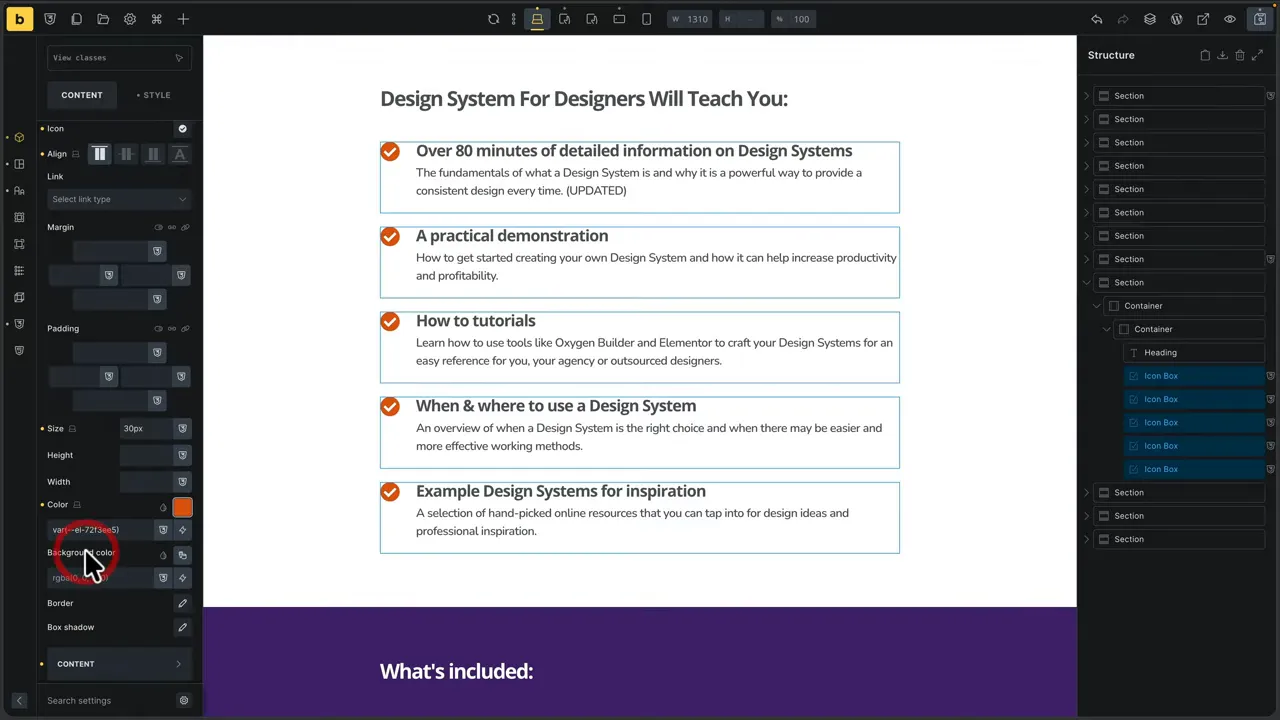
I repeated the same process for the icon boxes on the purple background, this time changing the icons to white. A handful of shared adjustments fixed each group, rather than editing every item individually. No real drama there.
Cleaning Up Extra Containers
Inspecting the structure revealed a section and container, followed by an additional nested container that wasn't really necessary.
I'm not going to blame the plugin for that. This was an older Elementor layout, and the converter was translating the structure it had been given. It wasn't necessarily creating the structure I'd choose if I were building the page fresh in Bricks.
The cleanup would be to move the contents into the appropriate parent container and remove the redundant wrapper.
I'd expect a more modern Elementor layout using Flexbox or CSS Grid to have the potential for a cleaner transition, but that wasn't established by this test. The source layout still has a bearing on the structure you get back.
Check Tablet and Mobile Breakpoints
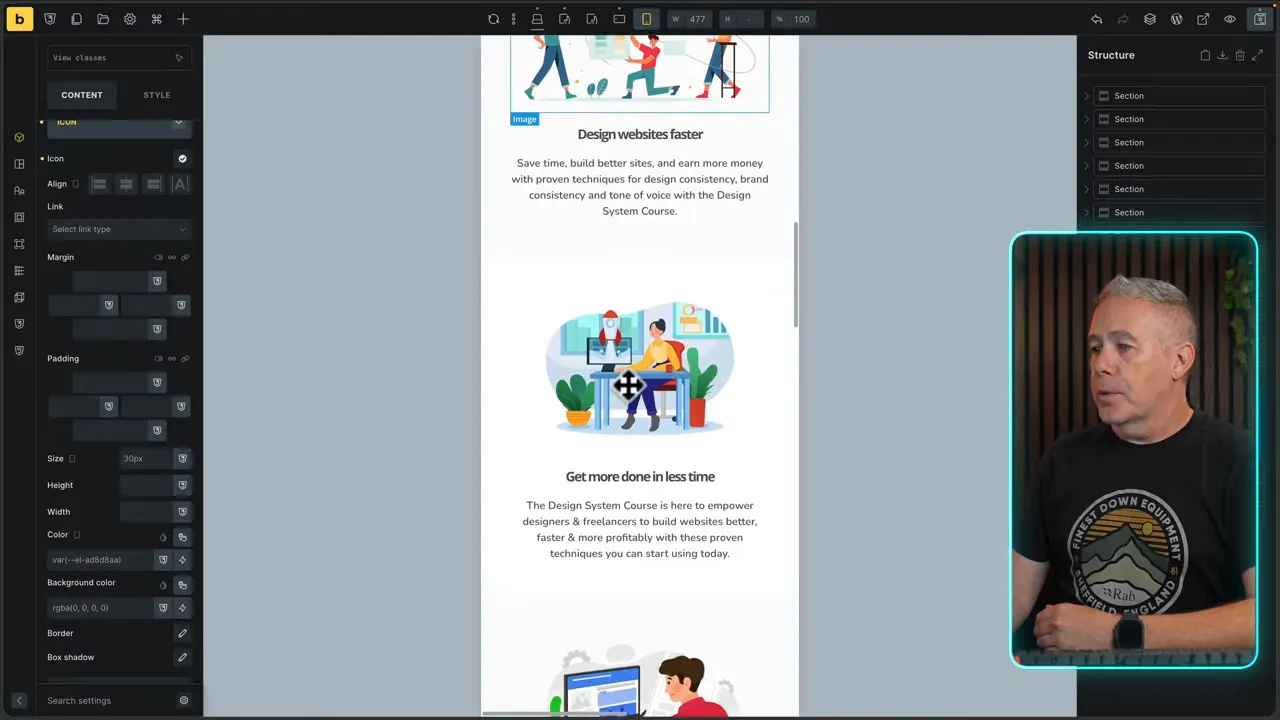
A desktop layout looking reasonable isn't the end of the review. I switched through the tablet and mobile breakpoints inside Bricks to see how the converted design held up.
Tablet looked good in this example. The layout was broadly where it should have been, with nothing obvious causing a major problem.
On mobile, the content also followed the expected layout, but some text could stand to be smaller. A few sections would benefit from additional tweaking, and the broken video still needed resolving.
My checks focused on:
- Whether content stacked correctly at smaller sizes.
- Whether headings and body text remained an appropriate size.
- Whether icons retained their intended alignment.
- Whether interactive elements and embedded content worked.
If you're unfamiliar with how these controls work, the official Bricks responsive editing documentation provides useful supporting guidance.
There was some remedial work here, but nothing that made me feel I should have rebuilt the whole page manually instead.
Headers, Footers, and Display Conditions
The conversion wasn't limited to the page content. In the Bricks templates area, both the header and footer had been migrated into the correct place and assigned their respective template types.
More importantly, the display conditions had come across as well.
In this setup, the header and footer applied across the website but excluded the front page because it was a dedicated landing page. Those were the conditions set in Elementor, and they had transferred into Bricks.
That's a useful result. Moving the design is one part of a template migration; preserving where that template appears is another. Both worked in this example.
4. Finish the Transition Away from Elementor
Once the converted content and templates had been reviewed, I went into the WordPress plugins screen and deactivated Elementor Pro, followed by Elementor itself.
The Bricks versions were available in the Pages area, including the Bricks front page. The original Elementor pages were still there and could be deleted if no longer needed.
Leave that cleanup until you're happy with the replacement. In particular, don't let a successful conversion notification stand in for checking the pages, templates, responsive layouts, and functionality on staging.
This test demonstrated the transition to a Bricks-based version. It wasn't a detailed walkthrough of a hosting-specific staging-to-live deployment process.
Free Version, Pricing, and Lifetime Offer
The free three-page allowance is a sensible place to start. A paid license removes that restriction for larger migrations.
At the time of the test, a discounted lifetime offer was advertised through September 10, 2026. Pricing and promotions can change, so check the developer's current terms rather than treating a recorded offer as permanent.
For me, the purchasing decision would come after trying the free version on representative content. If it handles your harder layouts well and leaves a manageable amount of cleanup, you'll have a much better basis for deciding whether the paid version is worthwhile.
My Verdict: A Useful Head Start, Not a Perfect Replica
Bricks Migration Engine performed well on this simple landing page. The core layouts, carousel, button interaction, colors, and template conditions made the journey. The video embed didn't, the icon styling needed correcting, and the older layout structure left some cleanup to do.
I still need to test it against a more comprehensive set of complex layouts before drawing wider conclusions. This result doesn't establish how it will handle every Elementor site.
But I don't think perfection is the only useful measure here. Even a tool that gets you 70% or 75% of the way through a migration could save a substantial amount of rebuilding time. That's a way of thinking about its value, not a measured completion score for this test.
My recommendation is to test the free version on a staging copy of your own site, using some of your more complex pages. See what survives, inspect what needs attention, and judge the time saved against the cleanup required. For this particular site, it gave me a very useful head start.
Sponsor: WP2FA for WordPress Login Security
This test was independent of Bricks Migration Engine. The separate sponsor was WP2FA by Melapress, a WordPress two-factor authentication plugin.
Two-factor authentication adds a second verification step, so a stolen password alone isn't enough to complete a protected login. WP2FA supports role-based enforcement, grace periods, multiple verification methods, and trusted devices. Options discussed included authenticator apps, email codes, SMS, push notifications, and YubiKey.


