Moving an established store to a different eCommerce plugin is a fairly big decision. Products are only part of the picture. You also have customers, orders, transactions, coupons, tax rates, and all the little details that keep the business running.
That is why I consider the WooCommerce migrator one of the most important FluentCart updates since its release. It handles much of that heavy lifting, and you can use it with the free version of FluentCart and the free Migrator plugin. There is no requirement to buy Pro just to run the migration.
There are caveats. This is not a complete copy of every WooCommerce setting and every piece of plugin data. But it brings across the core store information, including variable products, and leaves a much more manageable amount of cleanup afterward.
What You'll Learn
- The free FluentCart Migrator transfers core WooCommerce data without requiring a Pro licence.
- Migration steps can run selectively through the dashboard or individually using WP-CLI.
- Imported orders, customers, variations, tax rates, and coupons should be checked before completing the move.
- Payment credentials, email templates, and unsupported metadata require separate attention after migration.
Table of Contents
- What I Tested in WooCommerce
- 1. Back Up Your Site and Check the Requirements
- 2. Install the Free Version of FluentCart
- 3. Install the Migrator and Select WooCommerce
- 4. Review the Data and Choose Your Migration Steps
- 5. Run the WooCommerce to FluentCart Migration
- 6. Check the Imported Data Inside FluentCart
- What Does Not Migrate Automatically?
- Rerunning the Migration and Handling Extra Data
- A Much Smaller Migration Job, Not a Zero-Work Switch
- Sponsor: SEOPress
What I Tested in WooCommerce
I wanted to test something a little more useful than an empty store with a single product. My sample WooCommerce installation included:
- 12 products, with a mixture of simple and variable products.
- 15 orders across different statuses, including processing, completed, and pending payment.
- Customers with associated orders.
- A selection of coupons.
- UK VAT configured at 20%.
- Free shipping and standard flat rate shipping.
- An offline payment method for placing sample orders.
The payment setup is worth noting. This was a sample site using offline payments, not a test of reconnecting a live payment processor. Payment gateway credentials need separate attention after migration.
The hands-on product checks focused on simple and variable products. Digital products follow the same migration approach, but download history logs are one of the exclusions to be aware of.
1. Back Up Your Site and Check the Requirements
Make a backup before you start. That applies to the standard migration and to any manual or AI-assisted changes you make afterward. If you need a refresher, the WordPress backup guidance explains the parts of a WordPress installation that need protecting.
You need FluentCart 1.6.2 or later for this migration process. I used version 1.6.3 for the test. Also make sure you are using an up-to-date version of WooCommerce, then let the Migrator run its compatibility check rather than assuming everything is supported.
At the time of this test, the migration tool supported WooCommerce and Easy Digital Downloads. SureCart was listed as coming soon, so its appearance in the source selector did not mean that migration route was available yet.
Before committing to a move, check something more fundamental as well: does FluentCart include the features your store actually needs? A straightforward data migration does not remove the need to assess the replacement platform.
2. Install the Free Version of FluentCart
In your WordPress dashboard, go to Plugins > Add New Plugin, search for FluentCart, and install and activate it.
Open FluentCart and work through its setup wizard. It is worth completing this rather than skipping past it, because the wizard sets up the store pages you will need.
- Enter the basic store information requested by the wizard.
- Continue through the page setup step.
- Choose Start from scratch when setting up products.
- Save and finish the setup.
Starting from scratch is perfectly fine here. The Migrator will bring in the WooCommerce products afterward.
At this point, FluentCart should be an empty store, with no imported orders or sales information. That gives you a clear starting point for checking the results.
One thing I particularly like is that variable products are included in FluentCart’s free version. You do not need to add a premium licence simply because your WooCommerce catalogue contains variations.
3. Install the Migrator and Select WooCommerce
Download the latest free Migrator ZIP from FluentCart’s migration information article, install it through the WordPress plugin upload screen, and activate it.
You should then find Migrator at the bottom of the FluentCart menu.
Open it and the tool will detect the supported eCommerce plugins installed on the site. Select WooCommerce, allow the compatibility check to run, and click Continue once it confirms compatibility.
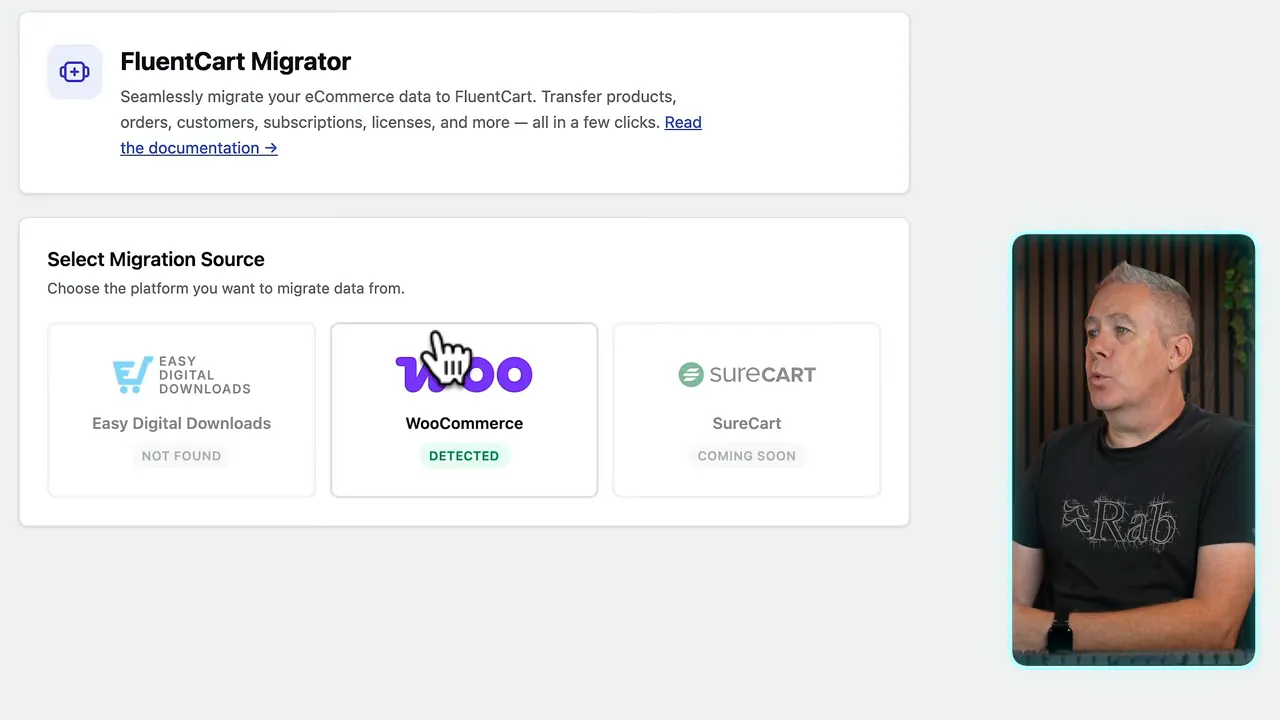
This process works with the WooCommerce installation already present on the WordPress site. There is no separate export-and-import file workflow in the steps used here.
4. Review the Data and Choose Your Migration Steps
The pre-migration overview shows the information detected in WooCommerce. In my example, that included products, orders, customers, coupons, and transactions, along with payment method and order status information.
Use this screen as a sanity check. Do the detected totals broadly match what you expect to find in your source store?
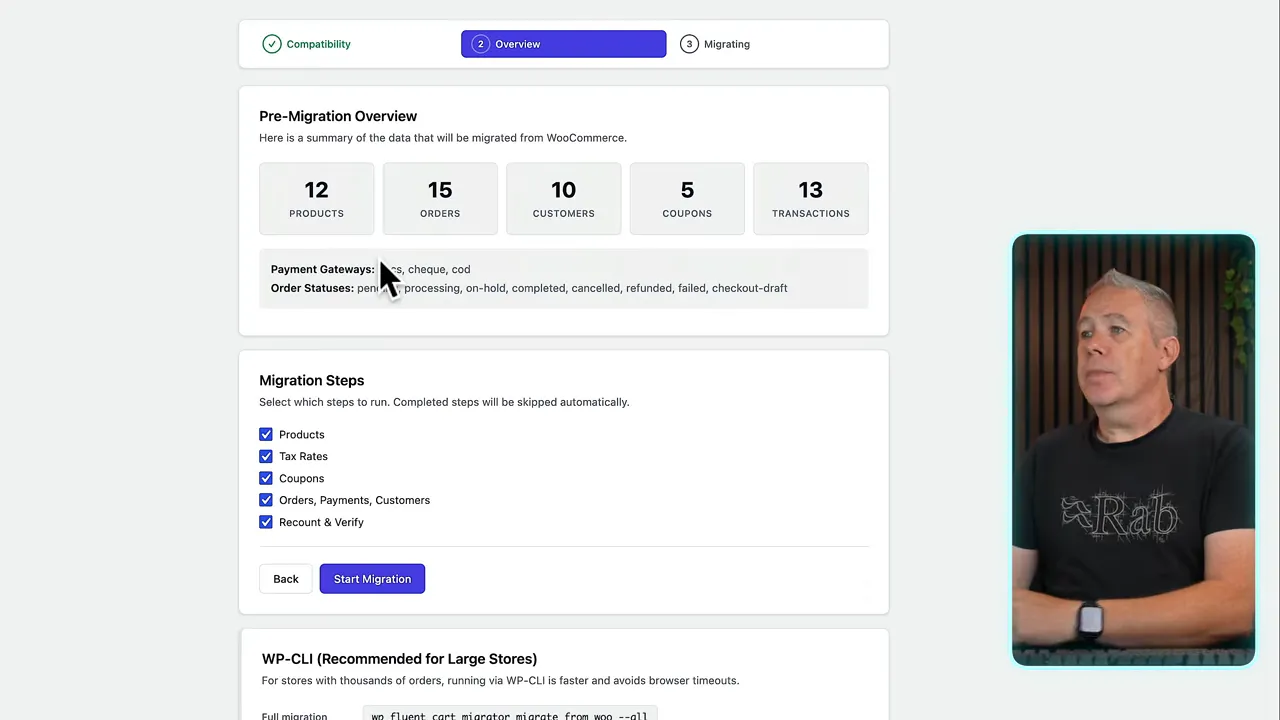
You do not have to migrate everything. The migration steps have checkboxes, so you can select or deselect the parts you want to bring across.
That is useful if you have been building a store that is not live yet. You might want the products and configuration but have no reason to retain a handful of test purchases.
The WP-CLI Alternative
Underneath the migration controls, the tool also provides WP-CLI commands. These let you run the migration from a terminal, either as a complete process or one step at a time.
For a larger store, or if you prefer checking each category of data before moving on, that is a useful option. You can work through the stages rather than running everything through the browser interface.
If WP-CLI is unfamiliar, the official WP-CLI website provides background on the command-line interface for WordPress. Use the migration commands supplied by your installed Migrator rather than copying commands intended for a different version.
5. Run the WooCommerce to FluentCart Migration
Once you are happy with the selected steps, click Start Migration.
On my small test store, the process finished in a matter of seconds. That was with 12 products and 15 source orders, so it was not a large-scale performance test. The useful point is that the standard workflow was quick and required very little intervention.
When it finishes, use the option to open the FluentCart dashboard. You should now see the imported store data reflected in the dashboard and the relevant admin sections.
Do not stop at the completion message, though. A successful import is the point at which you start checking the result, not the point at which you assume the store is ready.
6. Check the Imported Data Inside FluentCart
Orders and Transactions
Open Orders and inspect individual records. In my test, the imported orders included their items, pricing, payment method, and activity information, including order notes and stock-related entries.
You can also move between an order and its associated customer, which makes checking those relationships straightforward.
One apparent discrepancy was the order count: WooCommerce showed 15, while FluentCart showed 13. In this sample, that difference came from pending orders and how they were counted.
A difference in headline totals does not automatically mean data has disappeared. Check the underlying statuses and records before treating the totals as a like-for-like comparison.
The migration breakdown also describes the preservation of important order identifiers and historical details, including original order IDs, timestamps, and invoice numbers. Order items, transactions, and refund records are covered too.
Customers
Next, open Customers and inspect a few customer profiles. Check the details that matter for your store:
- Names and email addresses.
- Address information.
- Associated orders.
- Order statuses.
All the customers in my sample were fictitious, but the profiles contained the kinds of information you would expect to verify in a real migration.
Products and Variations
Under Products, check both a simple product and a variable product. Do not just confirm that the product title exists. Open the record and look at the content, media, variations, and pricing.
My variable products came across with their different variants and prices. Product media was present as well.
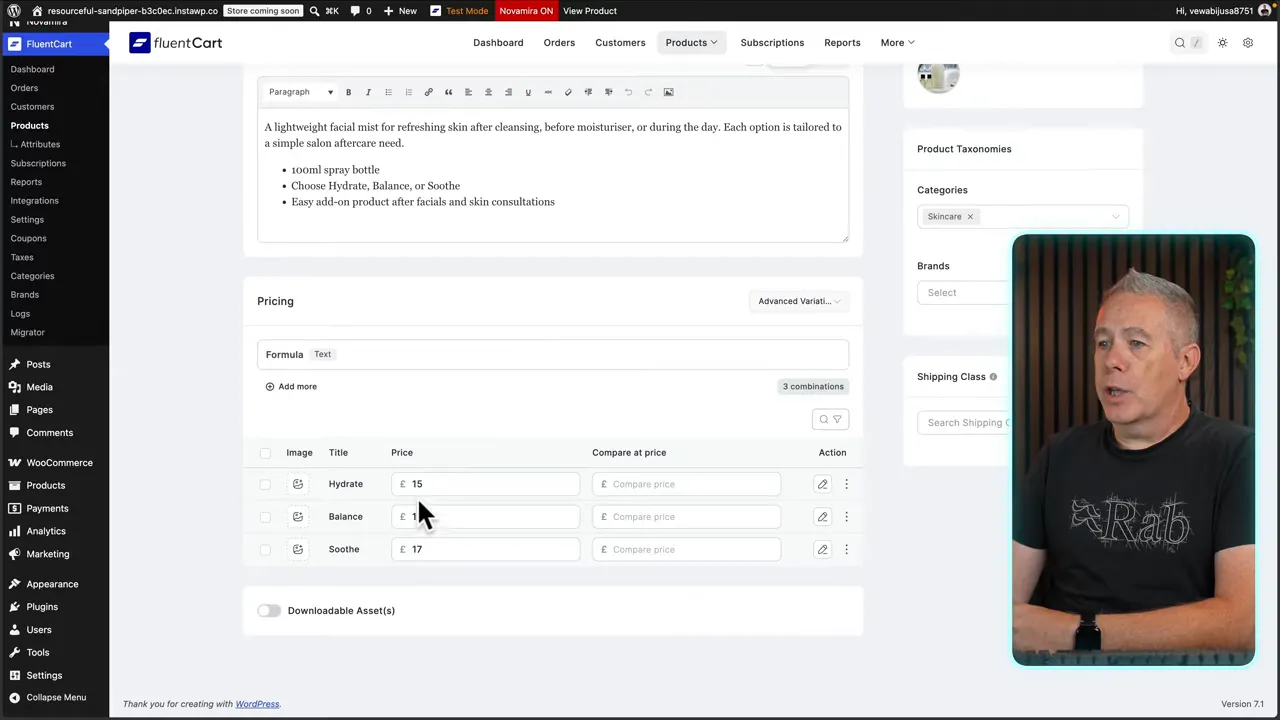
Be careful not to mistake missing source information for a migration failure. In this example, some additional variation images had never been added in WooCommerce, so there was nothing for the Migrator to bring across.
Tax Rates and Coupons
In FluentCart’s settings, check that tax is enabled and inspect the imported rates.
My UK configuration appeared with tax collection enabled and a 20% GB standard tax rate. The label could be renamed to VAT if preferred, but the important part was that the rate had transferred.
The coupons were also present in FluentCart’s Coupons section.
The source store had free and flat rate shipping configured, but I did not perform an equivalent shipping verification in this walkthrough. Treat shipping as something to check separately rather than assuming that the tax and coupon results confirm it.
What Does Not Migrate Automatically?
This is the part to read carefully before moving a real store. The core data migration is useful, but it is not intended to reproduce every WooCommerce feature or extension.
- Payment gateway API keys: Credentials do not transfer. Reconfigure your payment gateways in FluentCart.
- Email templates: The platforms use different email systems, so the WooCommerce templates are not carried over.
- Draft and trashed orders: These are excluded.
- Download history logs: Historical download logs are not migrated.
- Third-party plugin metadata: Extra information stored by WooCommerce extensions is not automatically included.
- Refund reason text: Refund records can transfer without the explanatory text describing why the refund was processed.
There is an important distinction between an order retaining its historical payment method and your new checkout being connected to a working payment gateway. Seeing payment information on an imported order does not mean the API credentials have been configured.
Similarly, migrating a refund record does not mean every piece of supporting refund information is preserved.
Read FluentCart’s migration breakdown before you proceed. It explains what maps across, what stays the same, what is excluded, and how the migration stages behave when run again. That is much more useful than assuming that “migration complete” means “identical store.”
Rerunning the Migration and Handling Extra Data
The migration documentation also covers rerunning individual stages. That matters if something does not work as expected or you need to revisit part of the process.
For example, the store settings stage synchronizes information such as currency, address, and store name, but only fills empty destination values. It does not replace settings you have already entered in FluentCart.
Do not assume every stage behaves in exactly the same way. Check the documented rerun rules for products, tax rates, coupons, orders, and missing customers before repeating a step.
Can AI Help With the Remaining Work?
Potentially, yes. In my additional testing, I had success using an AI-assisted workflow with Codex to bring across some information beyond the native migration.
Tools such as Codex, Claude, or Cursor may help with supplementary work when they can access the relevant information and correctly understand how both platforms store it.
That is an option for filling specific gaps, not a guarantee that any unsupported WooCommerce data can be moved safely or meaningfully. Third-party metadata, in particular, needs a suitable destination and a clear understanding of what it does.
Back up first, keep the changes focused, and verify the result. For some settings, manual configuration will be the simpler choice.
A Much Smaller Migration Job, Not a Zero-Work Switch
The impressive part here is how much of the difficult work is already handled. Products, variations, customers, orders, coupons, and tax rates can be brought into FluentCart without buying the premium version.
You still need to reconnect payment gateways, deal with email templates, review exclusions, and check the imported records. Depending on your store, there may also be manual or AI-assisted work to complete.
But if FluentCart already has the features you need, the migration process removes a substantial obstacle. Rather than rebuilding the core store data yourself, you can concentrate on checking the result and finishing the parts that need individual attention.
Sponsor: SEOPress
SEOPress sponsored this tutorial. Its free version allows compatible external AI agents to analyze content and manage essential SEO settings. SEOPress Pro adds an in-editor AI assistant, more advanced automation for redirects, schema, and image metadata, plus flexible AI provider options.
If you want to reduce repetitive WordPress SEO administration, you can explore SEOPress version 10 and its current pricing.


