I’ve spent the last couple of weeks testing Novamira Pro on real WordPress projects, and the biggest time savings haven’t come from asking it to design a website.
To be honest, I don’t think AI tools currently do a particularly good job of the design side. There’s plenty of noise about generating a $10,000 website and selling those till the cows come home. That isn’t the bit I’m interested in.
What interests me is the work around the design: sorting out awkward migration data, creating useful admin tools, building content structures, organizing media, and filling in SEO metadata. None of that is especially glamorous. All of it takes time.
Here’s how I’ve been using Novamira Pro, primarily alongside Codex, to get that work done faster while keeping control of the finished site.
Key Takeaways
- Set persistent instructions so AI respects your plugins, design system, and preferred implementation methods.
- Move tested, self-contained code out of the sandbox to avoid unnecessary dependence on Novamira.
- Use AI for repetitive migration, data matching, admin customization, and media organization tasks.
- Generate SEO and social metadata from existing content while retaining control over the results.
Table of Contents
- Start With Custom Instructions and Memory
- Use the Sandbox for Testing, Not as an Unnecessary Dependency
- Make the WordPress Admin Fit Your Content
- Speed Up a Bricks Migration by Matching Data From Different Sources
- Build a Structured Recommended Tools Directory
- Generate SEO and Social Metadata With SEOPress
- AI Is More Useful When It Supports Your Expertise
Start With Custom Instructions and Memory
Before asking Novamira to do anything substantial, spend some time in Memory & Instructions. This is one of the most important parts of the setup.
When I talk about the AI doing something here, I’m referring to Novamira working with a connected AI tool such as Codex or Claude. The rules you give that combination make a considerable difference to the results.
Tell it how you want the site built
Custom instructions are persistent rules. Instead of repeatedly explaining your preferred tools and working methods, you establish those expectations up front.
For my current project, the important instructions cover these areas:
- Use ACF when it is installed. Create custom post types, taxonomies, and meta fields through ACF or ACF Pro rather than writing separate PHP registration functions.
- Respect the existing design system. Use the site’s CSS variables instead of introducing arbitrary values.
- Prefer native Bricks features. Use Bricks elements and functionality rather than dropping a lump of generated HTML into an HTML element or creating unnecessary sandbox functions.
- Organize uploaded media. Put new assets into the appropriate folders I’ve created in HappyFiles Pro.
- Test the work before treating it as finished. Confirm that the result works rather than stopping at the point where something has been generated.
The ACF instruction matters because AI will often default to writing code for a task your existing plugins already handle. ACF supports managing post types and taxonomies, so that’s where I want those structures to live on this project.
The same principle applies to Bricks. A page might look right if the AI inserts custom HTML, but that doesn’t give me the same flexibility as a properly built, native Bricks layout. The implementation matters just as much as the visible result.
Keep memory useful and current
Memory is slightly different. Some entries come from things you explicitly ask the AI to remember. Others are picked up during the work, such as details about a data import or a task that has been completed.
You can open, edit, and delete these entries. The editable content is essentially a Markdown document containing context and instructions. It isn’t something you have to accept without question.
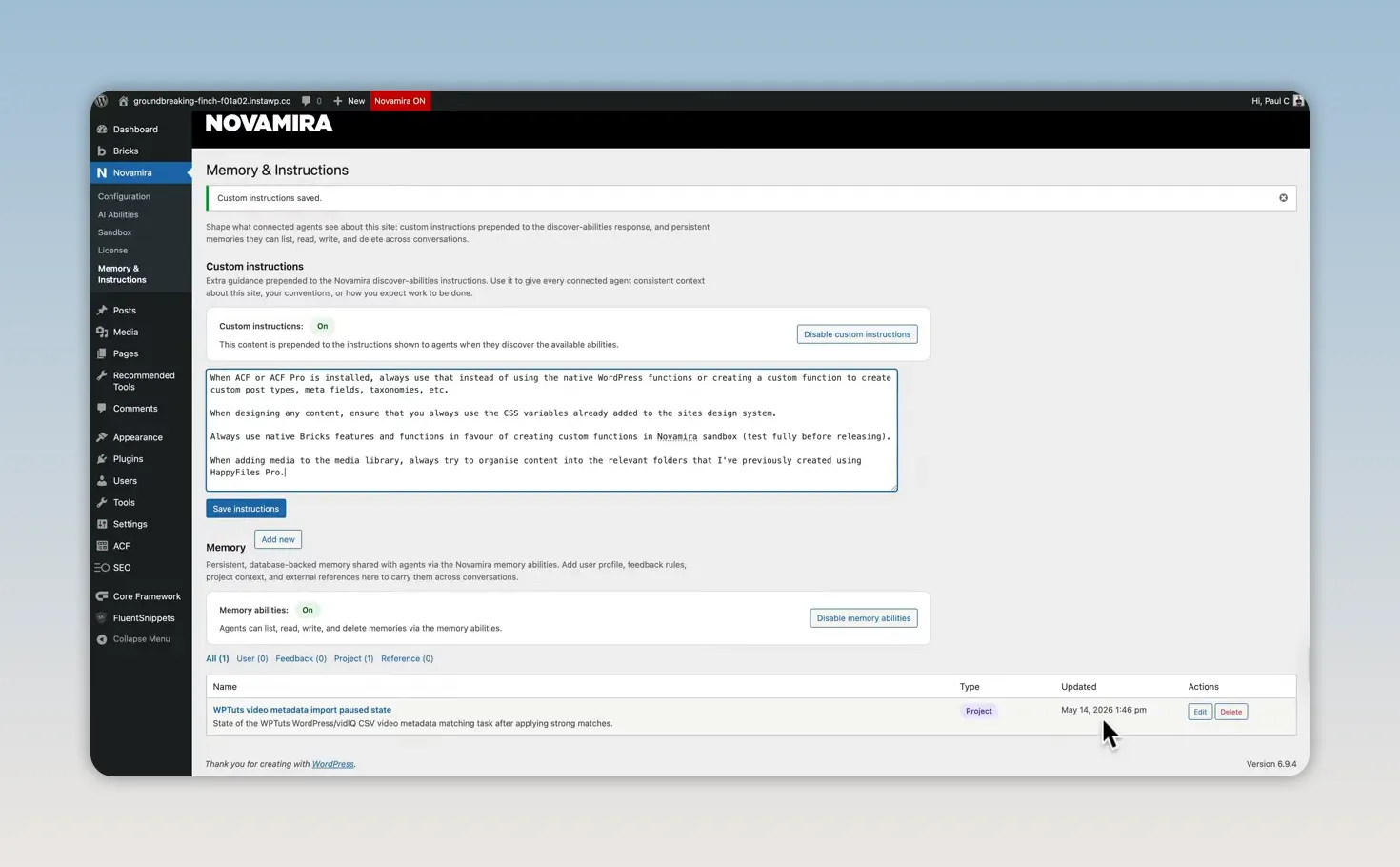
I work across a studio setup and a home office setup, with different Codex versions installed. Reviewing the stored context helps me keep the working instructions consistent between those environments.
You might have a global set of rules for every project, project-specific instructions, or a mixture of both. Whichever approach you choose, keep it updated. It cuts down on repeated explanations and corrective requests, which can also help avoid wasting tokens. That becomes particularly useful when you’re using a model where usage limits or costs mount up quickly.
Use the Sandbox for Testing, Not as an Unnecessary Dependency
Novamira has a sandbox where the AI can create PHP files for custom functionality. For example, if you ask it to add a featured-image column to the WordPress post list and remove columns you don’t need, it may create a sandbox function to handle that.
That’s useful during development. The problem is leaving the finished functionality there when you don’t actually want it tied to Novamira.
I prefer to manage those functions in my own snippets plugin. In this case, I’m using Fluent Snippets because it stores the snippets as files rather than storing the snippet code in the database.
My preferred workflow is straightforward:
- Let the AI create the required function.
- Test it and confirm it works without unwanted side effects.
- Ask it to move the proven function out of the sandbox.
- Have it create the corresponding entry in Fluent Snippets.
- Manage the finished snippet from the environment I normally use.
You can make this part of your persistent instructions rather than remembering to request it every time.
One example is a duration formatter I use in Bricks. The stored value is a total number of seconds, but the template needs to display minutes and seconds. A small custom function handles that conversion, and I can reference it from my designs.
Once that function is tested, there’s no particular reason for me to leave it in Novamira’s sandbox. In Fluent Snippets, I can enable or disable it, control where it runs, and reuse it on another project.
Moving self-contained functions out of the sandbox also means I can disable or remove Novamira without losing those functions. That’s the distinction I want: use the AI to help build the site, without making it an unnecessary permanent requirement for the work it produced.
Make the WordPress Admin Fit Your Content
Small WordPress dashboard improvements are an excellent use case for AI-generated snippets. They’re focused tasks with an obvious result, and they can make managing a large amount of content considerably easier.
You could install a dedicated plugin for some of these changes. Sometimes that’s the right choice. But if I only need a handful of specific adjustments, I don’t necessarily want another plugin with a collection of features I won’t use.
Add columns that show useful information
For my posts, I’ve added columns for:
- Featured images.
- Difficulty and software classifications.
- Duration, stored in an ACF custom field.
- The associated YouTube video ID.
For my Recommended Tools custom post type, the useful information is different. That list includes the featured image, title, tool type, discount code, discount amount, and whether the tool is featured.
These are practical changes. Instead of opening individual entries to check their data, I can see the information I need directly in the list.
Extend Quick Edit and filtering
I’ve also had the AI add the discount code, discount amount, and featured setting to Quick Edit. That means I can update those values without opening the full editor.
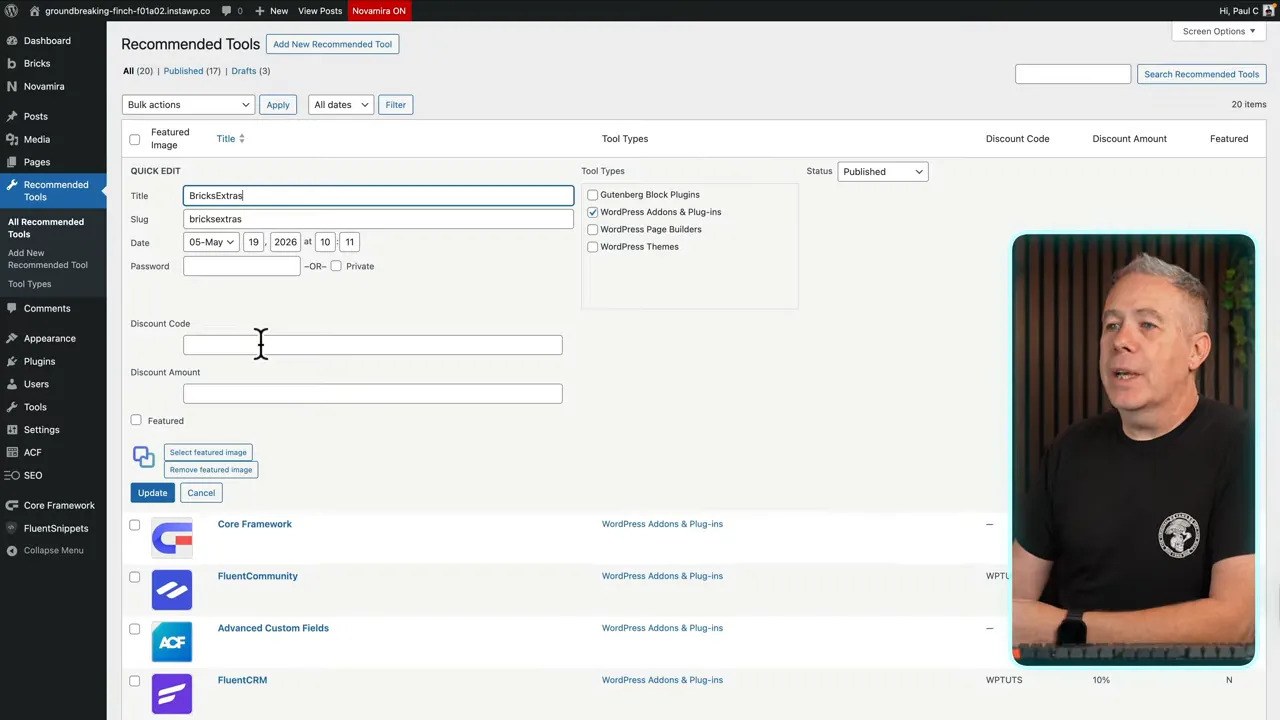
On the post list, I’ve added filters for video duration and missing video IDs. WordPress already provides date and category filtering, but these extra filters reflect the actual content I’m managing.
The missing-ID filter is particularly useful during the migration. It gives me a direct way to identify posts that still need attention rather than hunting through hundreds of entries.
All of these changes were created through Novamira and Codex, then saved as custom snippets. They’re small pieces of functionality, but together they make the dashboard much more useful.
Speed Up a Bricks Migration by Matching Data From Different Sources
I’m rebuilding the WPTuts website from a Blocksy-based site into Bricks. There are more than 800 posts involved, and getting the main content across wasn’t the awkward part.
The awkward part was how the video information had been handled.
On the existing site, a plugin checks my YouTube channel for new content. It creates a post, brings in the relevant information, and injects the video URL into the template. That works for the existing setup, but it doesn’t leave the video information conveniently available in the post fields I need for the new build.
For the Bricks media-player setup I’m using, I need the YouTube video ID rather than the full URL. So I needed to bring two sources of information together.
The process looked like this:
- Import the existing WordPress content into the development site.
- Obtain YouTube video data containing titles, video IDs, and links.
- Have Novamira and Codex match that data to the WordPress posts using the post titles.
- Populate dedicated ACF fields with the video ID and complete YouTube URL.
- Check the matched data and use the stored ID in the Bricks template.
The result is much more useful than simply moving the old content unchanged. Each post now has accessible video data in custom fields, ready for the new template to use.
This saved me a huge amount of manual work. Matching hundreds of posts with their corresponding video records is exactly the sort of repetitive job I’d rather not do by hand.
The useful AI task here wasn’t “build me a website.” It was “take these two accessible data sources and connect them properly.” That’s a far more concrete request, and it solved a genuine migration problem.
Build a Structured Recommended Tools Directory
The existing WPTuts site also has a Recommended Tools section. I didn’t want to copy every entry manually, recreate all the relationships, and then go looking for the missing logos.
There was nothing particularly complicated about the work. There was just quite a lot of it:
- Create a Recommended Tools custom post type.
- Create a custom taxonomy and its groupings.
- Bring over the existing tool data.
- Connect entries to their relevant groups.
- Build a Bricks template and apply its conditions.
- Display the groups and their tools using nested loops.
- Add logos, links, discount details, and featured indicators.
I asked Novamira to handle that work, and it created the content structure, brought over the data, and built the template. It also applied the template conditions.
Be explicit about nested loops
There was one important correction. Initially, it created multiple separate loops instead of the nested loop I wanted.
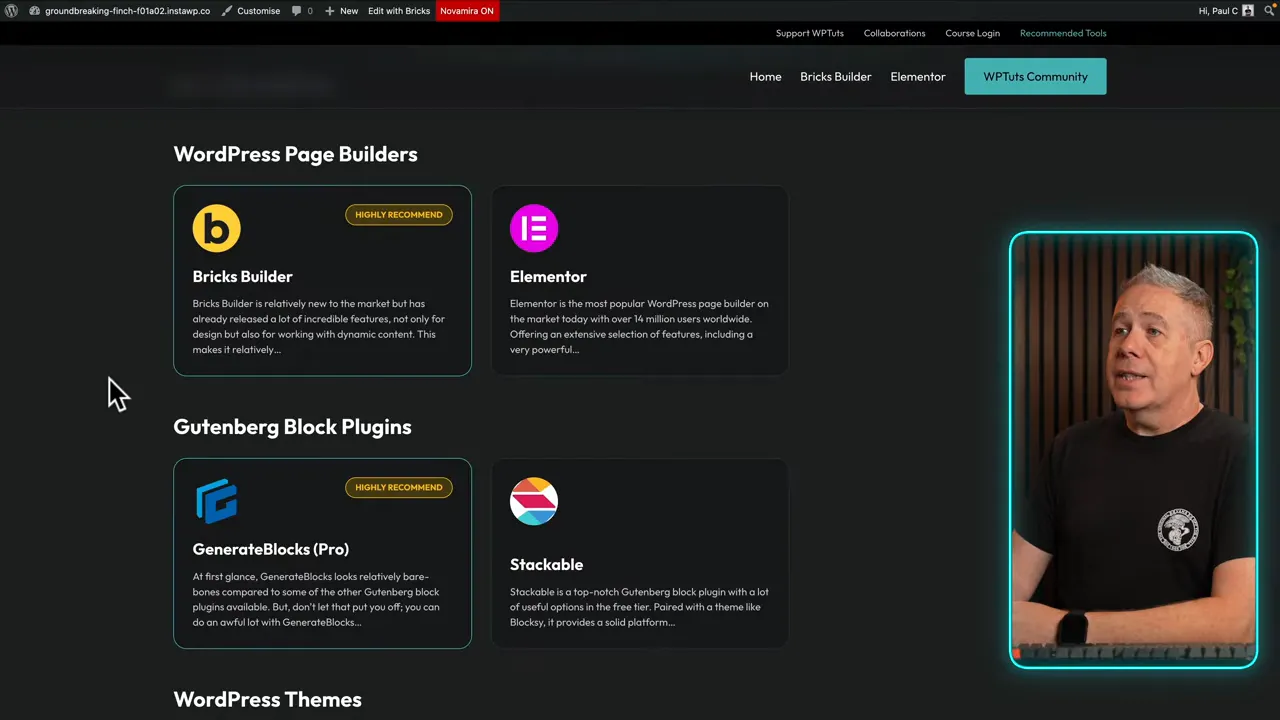
The intended structure was an outer loop for the tool group, such as WordPress page builders, Gutenberg block plugins, WordPress themes, or WordPress add-ons. Inside each group, a second loop displays the relevant tools.
I hadn’t specified that clearly enough. One additional instruction corrected it.
That’s worth remembering: an AI can produce a working result without choosing the structure you would have chosen. If the architecture matters, tell it what you expect.
Make the cards respond to the stored data
The finished directory uses the custom fields to control useful details. A checkbox marks a tool as featured or highly recommended, and the card displays the corresponding badge and highlighting.
Each card links to its stored destination. When a discount code and discount amount are available, those appear as well.
Rather than manually updating each card’s design, I’m managing structured data and letting the template display it. That’s the sort of setup I want to maintain.
Fetch and organize logos
I also asked Novamira to find the tool logos, download them, add them to the media library, and organize them into the appropriate HappyFiles folder.
A couple of the initial logos weren’t what I wanted. I asked it to replace those with icon versions, preferably SVGs, and it went back and did that.
This is where the earlier media instructions pay off. The task isn’t just to download a file. It’s to put that file where it belongs in the project.
Add new entries without repeating the whole process
During the rebuild, I removed tools I no longer use enough to recommend. I don’t want to recommend something simply because it used to be on a list.
I also had several tools to add, including ACF, BricksExtras, Core Framework, FluentCart, FluentCommunity, and FluentCRM.
I gave Novamira the list and asked it to find the relevant information, write a short description, obtain the logo and URL, create the entries, and organize everything appropriately. It completed that work in a couple of minutes while I got on with something else.
For a client migration, that’s another useful option. Where the source information is accessible, AI can take care of a considerable amount of the collection and data-entry work.
Generate SEO and Social Metadata With SEOPress
Another feature I like is that Novamira is aware of the plugins installed on the site. In this development environment, I’m using the free version of SEOPress.
I’ve been using the AI to read existing post content and populate the relevant SEO and social fields. That includes:
- SEO meta titles.
- Meta descriptions.
- Facebook Open Graph titles, descriptions, and images.
- X titles, descriptions, and images.
The important part is giving it existing content as the reference. I’m not asking it to dream up what a page might be about. I’m asking it to read the page and create appropriate metadata from that.
Use the article as the basis for the request
Alongside this, I’ve been using ChatGPT to turn my spoken material into written articles, with previous examples helping establish my tone of voice. Those drafts still need some tidying, and I may add images afterward.
Once the article is in WordPress, the metadata task is simple: identify the post, read its content, create an appropriate SEO title and description, and fill in the more detailed social versions through SEOPress.
For a test using my article about Affinity, the task completed in around 41 seconds. It updated the correct post and populated the SEO fields along with the Facebook and X metadata, including images.
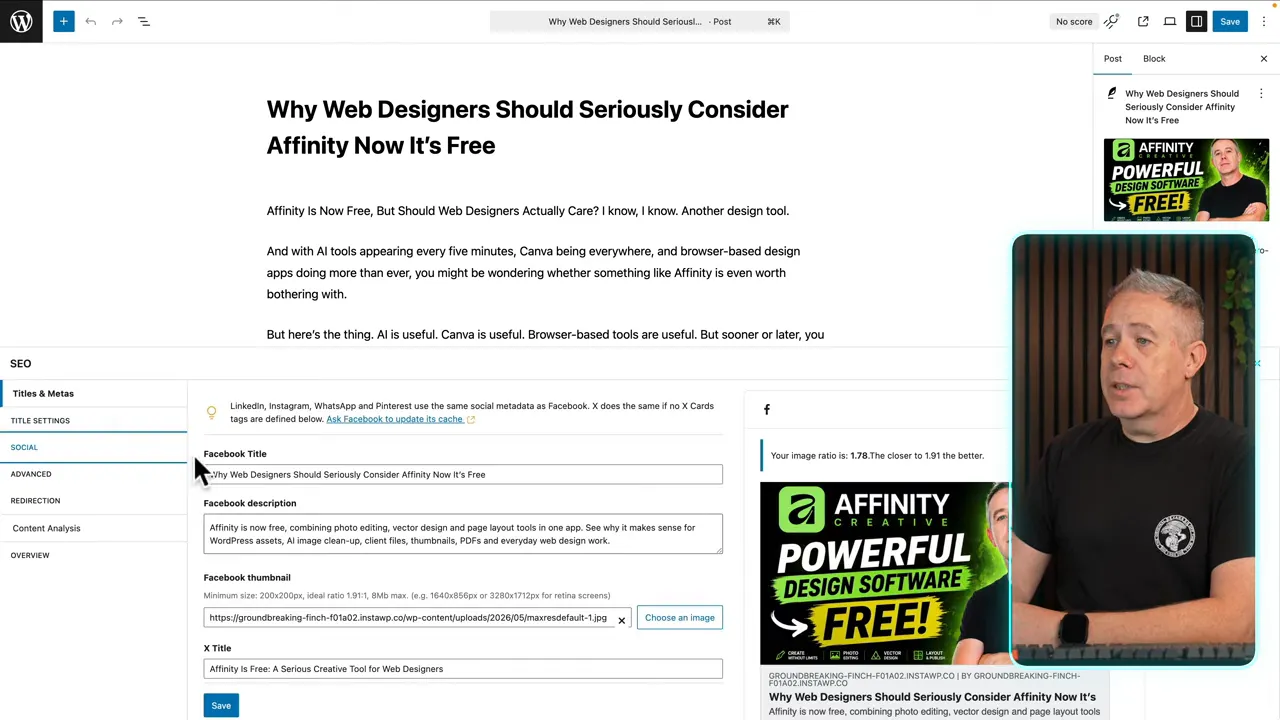
One post is a small example. Repeat that across 50 posts or pages, and the time saving becomes much more interesting.
I’ve never particularly enjoyed writing SEO titles and descriptions. If that’s your area of expertise, you may prefer to write them yourself. But for a task I don’t enjoy and don’t consider my strongest skill, this is a useful way to get the work done.
You can also be much more specific about how the metadata should be written. Add those preferences to your instructions rather than accepting a generic approach every time.
AI Is More Useful When It Supports Your Expertise
These examples aren’t about replacing a web designer with a prompt. They’re about removing time-consuming work from an existing professional workflow.
You still decide which plugins should own the data, how the templates should be structured, whether the generated code belongs in the sandbox, and whether the result is right. The nested-loop correction and logo replacements are good examples of that.
For freelancers and agencies, these capabilities can also expand what you offer. Data cleanup, migration assistance, dashboard improvements, and metadata work can become part of a more complete client package.
Could a client learn to do some of this themselves? Absolutely. They could also learn to build their own website. Most business owners would rather spend their time running their business than learning AI tools, sorting out WordPress data, and fiddling with templates.
That’s why I’m far more interested in practical workflows than predictions that every web designer will be obsolete in six months. Used properly, these tools let us work faster and offer more while keeping our judgment firmly involved.
The real win with Novamira is not handing over the whole project. It’s giving the AI specific, useful jobs and making sure the finished work remains manageable, portable, and yours.


