AI website building is interesting, but I still want to be able to select an element, adjust its spacing, change its classes, and get the design exactly where I want it. Using AI should not mean giving up the controls we already understand.
That is what makes Sitereal worth exploring. It is an Astro-based visual website builder that brings optional AI assistance, manual design tools, CMS functionality, and flexible publishing into the same workflow.
Over the last few months, I have been exploring ways to build websites without relying on WordPress to run the public-facing site. Sitereal is one of the tools I have been testing, particularly for smaller sites that do not need constant updates. This is an independent look at that workflow, not a sponsored recommendation.
Key Takeaways
- Sitereal combines optional AI assistance with visual editing and direct access to CSS and HTML.
- Local collections support simple content needs, while WordPress and EmDash provide external CMS options.
- The built-in design system centralizes reusable styles, responsive controls, and configurable component variants.
- GitHub integration and multiple publishing options support a flexible local-to-static website workflow.
Table of Contents
- Why Build an Astro Website Instead of a Traditional WordPress Site?
- Sitereal Is a Local App, Not a WordPress Plugin
- A Familiar Visual Editor With an Infinite Canvas
- A Built-In Design System, Not Just Individual Style Controls
- Media Management Is Included
- Use Local Collections for Simple CMS Content
- Connect WordPress or EmDash for More Flexible Content Management
- SEO, Forms, Search, and Site Settings
- GitHub Integration and Flexible Deployment
- Where This Workflow Makes Sense
Why Build an Astro Website Instead of a Traditional WordPress Site?
The basic idea is straightforward: keep the ability to manage structured content, but publish a largely static website.
Astro is a web framework that lets you work with familiar HTML and CSS concepts while bringing in data from other sources. In the static workflow explored here, that content becomes generated pages when you build and deploy the site.
Rather than needing the CMS to assemble the public page for each request, you publish the generated result. That gives you CMS functionality alongside the potential performance benefits of static delivery.
It also means that moving away from a traditional WordPress front end does not necessarily mean abandoning WordPress altogether. You can still use WordPress to manage content, then bring that content into an Astro-based website.
The important distinction is between where you manage the content and how you deliver the finished website. Those do not have to be the same system.
Sitereal Is a Local App, Not a WordPress Plugin
Sitereal installs on your computer. You build locally, rather than installing a page builder inside a live WordPress website.
Once you have a project set up, you can connect it to a GitHub repository or download the website files as a ZIP. I prefer the repository approach because it adds version control and makes it easier to move between machines or collaborate with other people.
There are several ways to handle content, too:
- Local collections: Create a simple CMS structure within the project.
- An external CMS: Connect WordPress or EmDash to manage content separately.
- Other data sources: Bring in information through options such as REST APIs, GraphQL, and RSS.
The built-in collections are not as powerful or flexible as a dedicated CMS. For a straightforward site, though, they may be all you need.
AI is optional, and manual editing remains available
Sitereal supports connecting an AI tool through its settings, with built-in AI Skills forming part of its broader approach. The appeal is a hybrid workflow: use AI to speed up development, then refine the result in the visual editor.
What interests me most is that you are not limited to asking AI for every adjustment. The visual controls, classes, CSS, and HTML output remain accessible.
This is an overview of those foundations rather than a complete AI build walkthrough. The useful point is that AI assistance sits alongside the editor instead of replacing it.
A Familiar Visual Editor With an Infinite Canvas
If you have used Bricks, Elementor, or Oxygen, the editing environment should feel pretty familiar. The page structure sits on the left, the canvas occupies the center, and controls for the selected element appear on the right.
That familiarity makes this a gentler transition than moving straight from a visual page builder into a code-only workflow.
Compare responsive layouts side by side
The infinite canvas displays multiple breakpoints together. You can see the desktop, tablet, and mobile versions of a page in the same workspace rather than repeatedly switching between them.
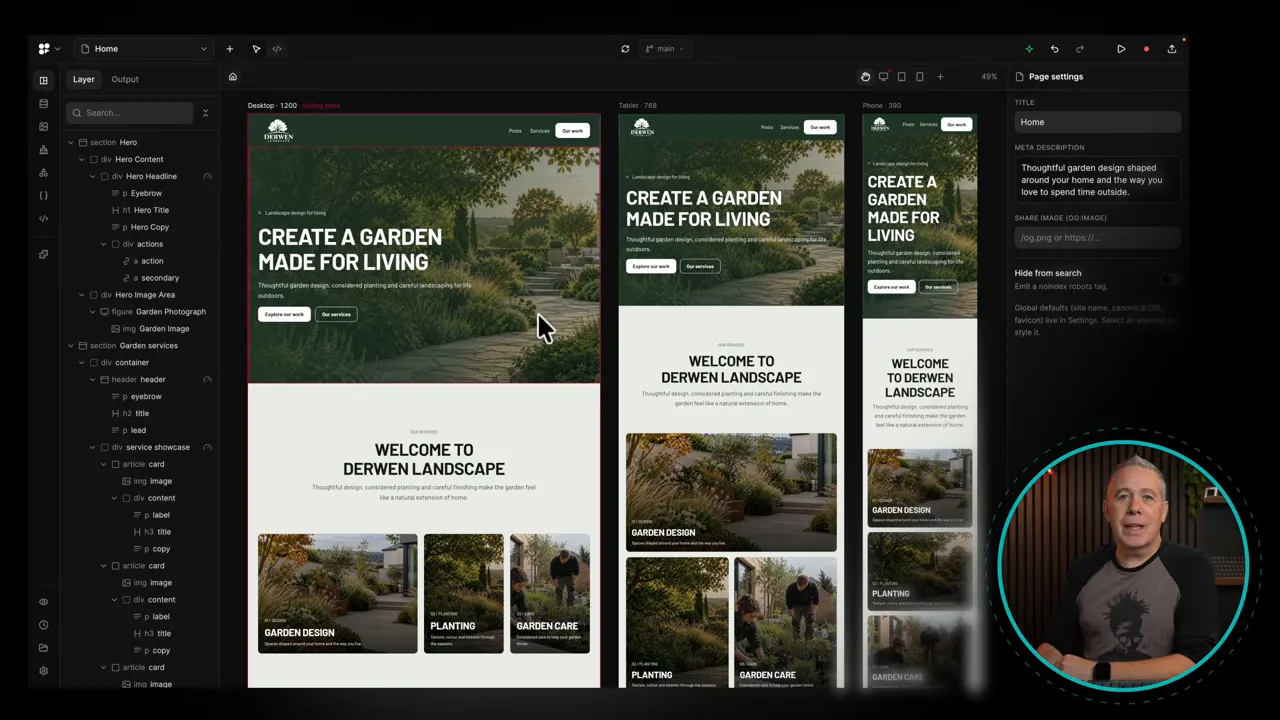
When you want to focus on one layout, the breakpoint icons let you switch into its individual editing view. You can also add additional breakpoints and return to the combined canvas whenever you need the wider picture.
Control styles, settings, and CSS
Selecting an element exposes a class-based system alongside Style, CSS, and Settings controls.
- Style: Adjust spacing, typography, colors, layout, and other visual properties.
- CSS: Work directly with CSS, including an expanded editing view.
- Settings: Change options specific to the selected element, including its HTML tag.
You have Flexbox and Grid controls, along with backgrounds, overlays, borders, and shadows. Properties can reference variables from the built-in design system, so you do not have to enter disconnected values throughout the page.
Add animation without leaving the editor
Effects can respond to events such as an element appearing or scrolling into the viewport. You can select an existing animation, such as a rise effect, and adjust how it behaves.
Elements with an animation have an indicator in the structure, which helps identify where effects have been applied. You can also define reusable styling within the design system and reference it through classes.
Inspect and edit the HTML output
The Output view shows the generated HTML for the selected element or section. You can open it and make manual adjustments when needed.
In the example project, the markup looked reasonably clean, without excessive layers of nested divs. That is an observation from this project rather than a blanket guarantee, but it is encouraging to have the output available for inspection.
A Built-In Design System, Not Just Individual Style Controls
The design system is one of the more substantial parts of Sitereal. It brings together design tokens and configurable component styling rather than leaving everything to individual element settings.
It covers colors, typography, spacing, themes, layout, motion, and accessibility-related settings. You can still add your own CSS definitions, so the built-in options are not the limit.
Colors, shades, and reusable values
You can define primary, secondary, and tertiary colors, along with accents, neutrals, and semantic colors. Changing a base color updates its associated shades and tints.
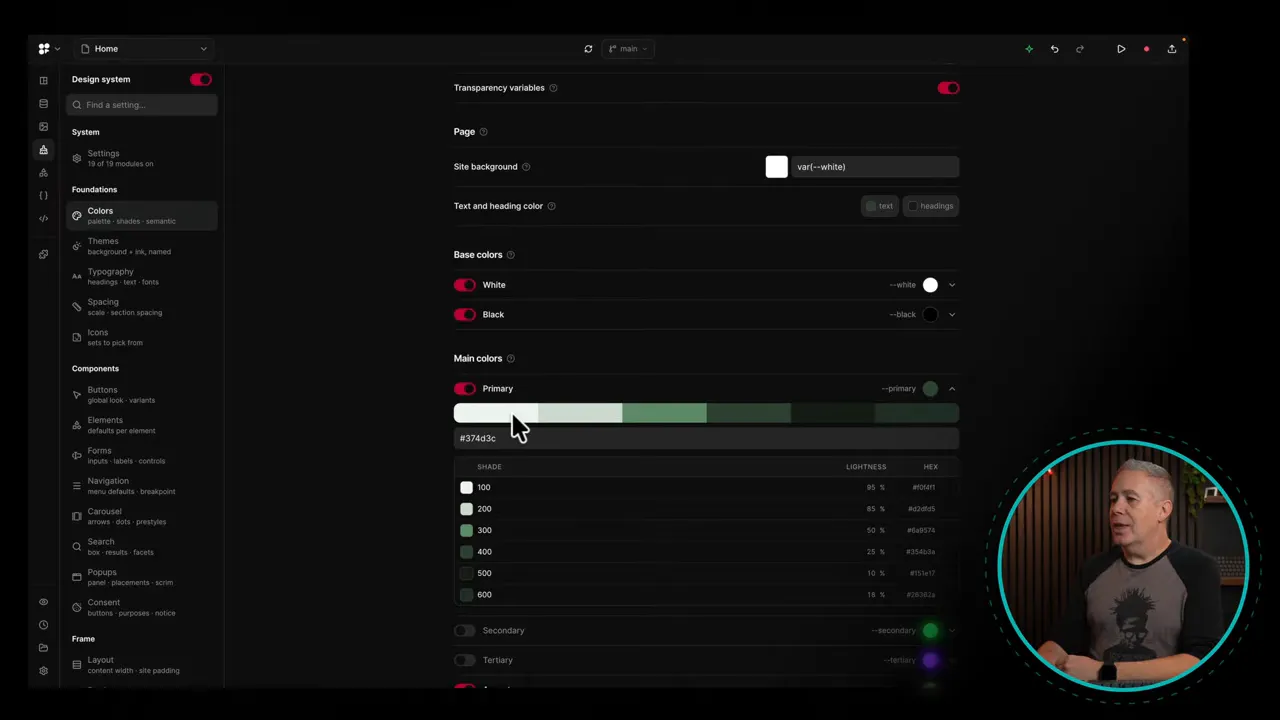
Typography and spacing have their own visual settings, making it easier to understand the system as a whole. Layout controls include minimum and maximum widths, while motion settings expose options such as easing curves.
There is also a searchable selection of icon sets that you can install into the project as needed.
Configure the component styles you actually need
The button settings are a useful example. You can configure typography, color, motion, and depth, then choose which variants are available.
Those options include primary, secondary, and tertiary color treatments, different sizes, and styles such as outline, soft, text, and pill.
You can enable or disable many of these options. If you know you are not using particular variants, removing them helps trim the generated CSS rather than carrying everything into the finished site.
Extend the system and organize your project
The separate Styles area exposes the project variables and lets you create custom ones. You can organize them into folders rather than being restricted to the supplied design system.
There are also places for project notes and code snippets. Notes can hold reminders or context for other people involved in development, while snippets can be filtered by whether they are active or disabled.
Templates and reusable components round out the setup. You can manage items such as a header or 404 template, create reusable components, and use them throughout the design.
Media Management Is Included
The media library lists the assets associated with the current project, with both list and thumbnail views.
From there, you can:
- Add or update image alt text.
- Create collections to organize media.
- Compress images.
- Replace existing images.
These are fairly ordinary requirements, but having them built in is handy. In WordPress, some comparable media-management tasks can require an additional plugin.
Use Local Collections for Simple CMS Content
Sitereal’s local collections let you define structured content within the project. In my example, I have a Services collection with fields such as title, status, slug, service description, and creation information.
Each collection can have an entry page and an archive:
- Entry page: The template for an individual item, comparable to a single template in WordPress.
- Archive: The layout that lists the items in that collection, such as all services.
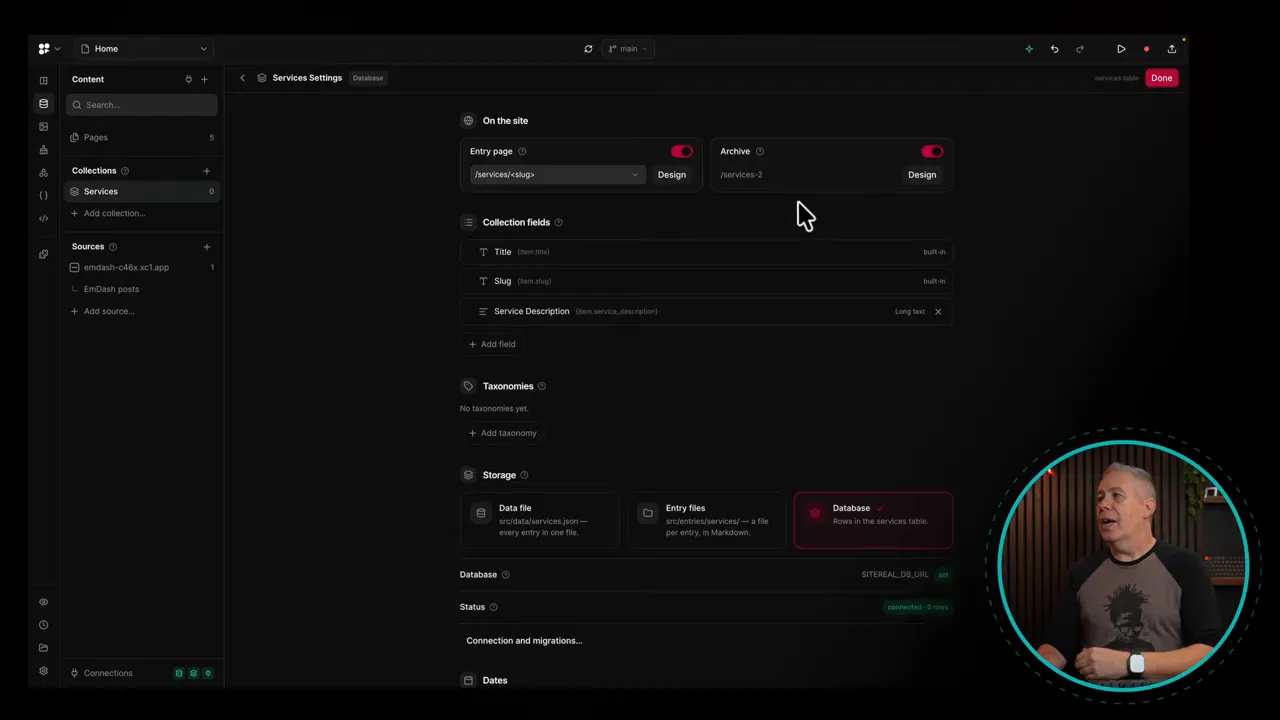
Title and slug are provided by default. You can add fields such as text, long text, numbers, toggles, and colors. Taxonomies are also available to organize content.
There are limitations. Some more advanced field capabilities are not present in the version I tested, which was a pre-1.0 release in the 0.6 series. Taxonomy support was also a relatively recent addition at that point.
That context matters. The local CMS is useful, but I would not treat it as a complete substitute for WordPress or another dedicated content platform.
Choose how collection data is stored
Collections offer database storage as well as entry-file and data-file approaches. That includes the option to work with static Markdown files.
In the static publishing workflow, the collection data is used to generate ordinary pages and content for deployment. The editing storage and the published output serve different purposes: one helps you manage information, while the other delivers the finished site.
Connect WordPress or EmDash for More Flexible Content Management
If the built-in collections are too basic, you can connect an external CMS instead. My test project uses EmDash CMS.
Its posts appear as an external source inside Sitereal, bringing across information such as:
- Post titles and slugs.
- Featured images and alt text.
- The main post content and other available post data.
That information can then be used in the Sitereal site. In my testing, new content came across from EmDash very quickly.
Importing content and publishing the live site are still separate steps. The content can be available inside the project before you deploy a new version of the website.
For this kind of static setup, one possible workflow is to start the CMS when you need to edit, bring the changes into Sitereal, deploy the updated site, and stop the CMS when it is no longer needed. That depends on using the CMS as a build-time content source rather than as a service the live site continually needs.
WordPress is another available CMS connection. There are also source options for REST APIs, GraphQL, and RSS feeds, giving you more flexibility over where the content originates.
SEO, Forms, Search, and Site Settings
The project settings cover considerably more than the site name. General settings include the language, home page, basic site information, and social links.
SEO settings are available globally, with the ability to apply settings on individual pages as well. Other configuration areas include:
- Legal information and consent.
- Not-found handling and redirects.
- Project folders, including page and public asset locations.
- Astro configuration and version information.
- Forms, pop-ups, and search.
- Database, repository, and publishing settings.
- AI access and connection settings.
Forms deserve a little extra attention. Adding a form to a static website does not remove the need to process its submission. Sitereal exposes form-related configuration, including SMTP details and sender information, but you still need an appropriate processing setup for the way the site is hosted.
There are also settings for templates, components, and presets. Presets can be imported and exported, allowing you to reuse a starting configuration.
The plugins and add-ons area was fairly limited in the version I tested. It is worth judging the tool on what is available now rather than assuming a larger extension ecosystem will arrive later.
GitHub Integration and Flexible Deployment
I use GitHub for this project because it gives me a useful way to manage the site files and their history.
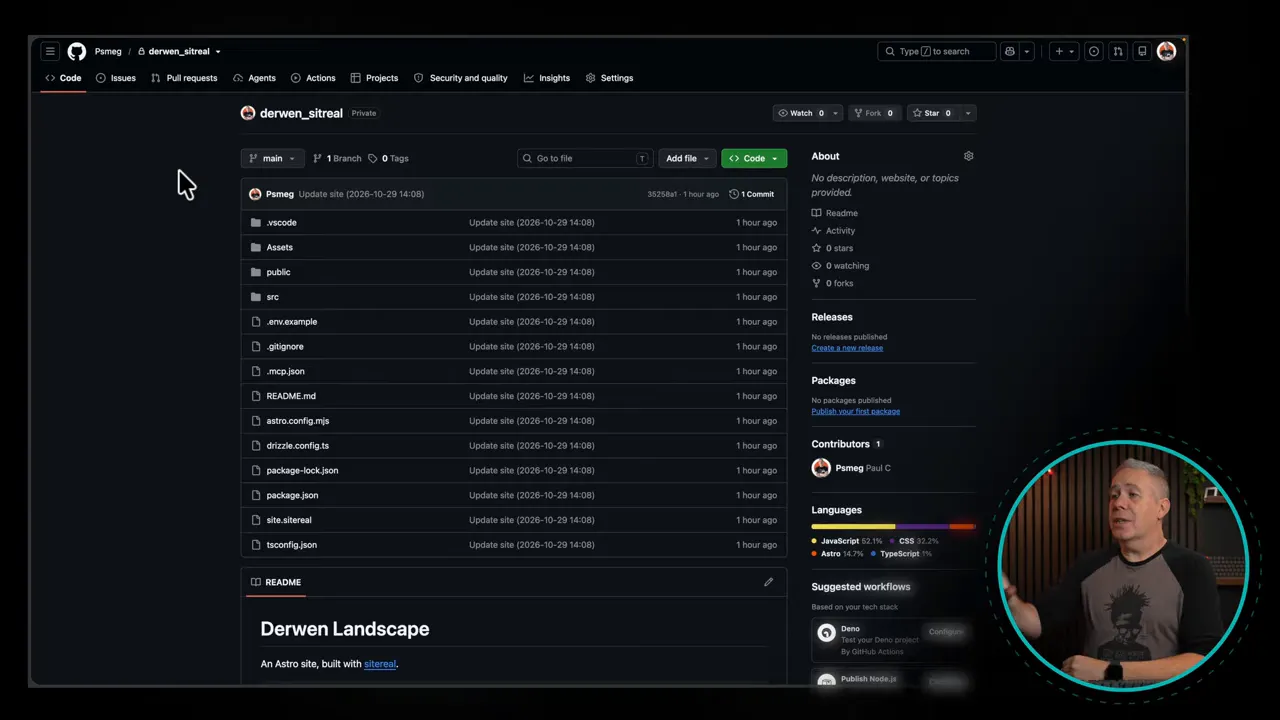
You can work with branches to try changes separately, push your updates, and pull changes made elsewhere. The same approach helps when moving between computers.
For collaboration, other people need access to both Sitereal and the repository. They can then pull down the project files and work through the shared GitHub workflow.
GitHub is my preference, not a requirement. Exporting the files remains an alternative.
Choose a host that suits the project
Sitereal’s publishing settings include options for Vercel, Netlify, Cloudflare Workers and Pages, as well as your own web hosting or another suitable provider.
For smaller sites, a service such as Cloudflare can offer a free hosting route, subject to its current plan limits and the requirements of the project. The builder itself and any connected services are separate considerations from hosting costs.
The key is matching the deployment configuration to the host and to the features your site uses. Astro’s deployment documentation is a useful reference for the framework side of that decision.
Where This Workflow Makes Sense
The strongest use case for me is a smaller website that does not require constant content changes. You get a visual editing environment, structured content, access to the underlying code, and several ways to publish the result.
There are trade-offs. You are moving to a local development and deployment workflow, the built-in CMS is relatively simple, and the extension ecosystem is still limited. If you need more capable content management, connecting an external CMS may be the better route.
What makes Sitereal interesting is the combination. You can use AI where it helps, make precise changes visually, work with a class-based design system, and choose where the finished website lives.
It is not about replacing WordPress for every project. It is about having another practical option for the sites that do not need the full traditional WordPress setup, without giving up the design control that makes a visual builder useful.


